How to download Facebook Paper still outside U.S.


Last week, the popular social network announced "Paper" , an app for iOS that displays a simple and friendly way the stories shared your community. And starting Monday, the same is already available but, for some strange reason, only to North America.


However, the good news is that the restriction is easily overcome. Next, we explain how to get Paper Facebook even outside U.S.

Before you go: Please note that to change the country or region where your data will delete any information of card of credit stored in iTunes. So make sure you have the data at hand and then enter them again.

Step by step:

  • Open the App Store from your iOS device and on the homepage go to the bottom where you'll find the email you registered on the service. Click the button.
  • When the menu is displayed, select the "View Apple ID."
  • After entering your password you will see your data, where you must select the country and region where you currently reside. Click on that option and the new menu select " Change country or region. " Must choose America.
  • Accept the Terms and Conditions, after which Apple prompts you to enter a payment method. Since the Facebook app is free, you can choose not to enter payment details.
  • Ends the change and return to the home page where you will see the available applications App Store U.S.. "Paper" is in the first section under "Best New Apps".
  • Paper Once you download, you can go back to change the data following the same steps. Simple, right?

And just as it is needed, here is the direct link to the application . Luck!
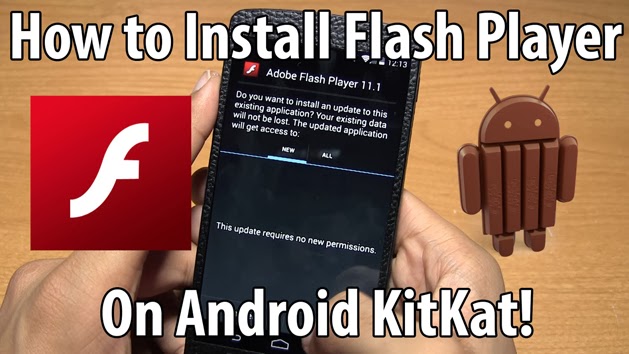
How to have Flash Player on Android 4.4 Kit Kat


How to install Flash Player on Android 4.4 Kit Kat

Adobe Flash Player removed from Android Ice Cream Sandwich. In Android 4.4, the plugin does not work well, but as always, someone in the Android community was able to find a solution to have a functional Flash Player to the latest version of Google .


The downside is that you can only have Flash Player running through the Dolphin browser. Anyway, it's better than nothing.

How to have Flash Player on Android 4.4 Kit Kat

To do this:

1 - Enter the Play Store and download the Dolphin browser on your Android device.

2 - Join Dolphin and go to the Settings menu by clicking on the logo transparent Dolphin in the lower left and select the first icon on the right.

3 - Click on Settings in the menu that appears.

4 - Go to "Web Content" and select Flash Player that is "always turned on".

5 - Finally, download the APK and installed on your Android device changed.

This file does not require permission, so do not worry that your information is stolen. You can confirm whether it works or not Flash Player on your device entering the Flash Player page on the Dolphin browser.

Now you will be able to browse your pages with Flash on Android by Dolphin without problems . Note that Flash requires a good processor, so if you have a low-end Android, the experience will not be as pleasant.

Moto G: How to install Android KitKat 4.4.2 with Root


If you own a Motorola Moto G I bring you good news, as many users are expected KitKat Android 4.4 is now available and we bring to you the installation process manually.


It is noteworthy that this procedure is only compatible with models XT1032 / XT1034, whether that before the installation process checks whether you have one of those two models.

Recall that this new version of Android 4.4.2 KitKat for Moto G brings many improvements, among which we describe below:

  • New and redesigned navigation bar transparent like the  Google Nexus
  • The phone application has been enhanced with options like the ability to search dial contacts directly from the keyboard.
  • The camera comes with improved focus and exposure, new circular design to the "Tap to focus" that can be driven with the finger to enhance focus and exposure for a photograph.
  • New editing options for photos in the gallery app, with new filters, you can draw freehand on photos, advanced cropping and improved color settings, exposure, contrast, etc..
  • Added support for printing personal photos and documents hosted or Google Docs, Gmail messages, etc..
  • Support to manage SMS / MMS text using the new version of  Google Hangouts Application.

Requirements:


  • Download and Install Motorola Drives to your PC | USB Drives 
  • Having the Bootloader unlocked or released, if it does not you can go go directly to the page from Motorola | Motorola Unlock Bootloader
  • Have a minimum 50% loading on your device
  • Have enabled USB Settings> Developer Options Debugging> USB Debugging
  • If you have developer options go to Settings Tap About phone and 7 times in "Build Number"

Steps to install Android KitKat 4.4.2 on Moto G

1 - Download and unzip the firmware according to your model:


2 - Download and unzip the folder ADB tools on the desktop and move the unzipped firmware prior to this folder |  ADB Tools

3 - Turn off your device and enter mode fastboot pressing for 3 seconds the power button + volume down button.

After four-mode and fastboot you should see the bootloader screen of your  Android  with the following options:

  • Normal Powerup
  • Recovery
  • Factory
  • Console Switch
  • Barcodes
  • BP Tools

5 - Connect your device to the PC by USB medium, and go to the folder ADB Tools where you have the unzipped firmware along with the files that contains the ADB Tools folder.

6 - You need to flash each of the partitions, that is made in the ADB Tools folder by pressing the SHIFT key on your keyboard + Right Click on your mouse and departure options you choose "Open command window here".

7 - A window execute CMD and type or copy each of the following commands (There may be some errors bootloader, ignore):

fastboot flash partition gpt.bin 
motoboot motoboot.img fastboot flash 
fastboot flash logo logo.bin 
fastboot flash boot boot.img 
fastboot flash recovery recovery.img 
fastboot flash system system.img_sparsechunk1 
system.img_sparsechunk2 fastboot flash system 
fastboot flash system system.img_sparsechunk3 
fastboot flash NON-modem HLOS.bin 
modemst1 erase fastboot 
fastboot erase modemst2 
fsg fsg.mbn fastboot flash 
fastboot erase cache 
fastboot erase userdata 
fastboot reboot

8 - After you do all this Moto G will reboot with the official firmware Android 4.4 KitKat .

Important: It May be the first attempt to fit them in G Moto black screen and will not start, that's normal, just repeat again the procedure again and to start them so normal.

How to install any Games & Apps on Chinese Mobiles


Hello everyone, this is already our third post hacerca Chinese mobile games or games like putting on a Chinese Mobile . Certainly you must have someone serve our previous post, but some not.


In the discussion that was generated in the post games for chinese phone, I found a very good contribution made by Kike RIOS, a visitor to our blog who gave us a solution that apparently it has worked for many of our users. Below step detail, the moment I do not own any catch since I have not a Chinese mobile to capture (if someone does please feel free to send screenshots to rinse the post), the steps are as follows :

1. Download the following ZIP file and unzip
2. The SD OF CHINA FOR MOBILE folder contains the following folders, as shown in the following image:


3. Replace these folders on the SD Chinese cell, its SD memory had these folders, simply Let them create.

4. Restart the phone and type the following code: * # 66 * # , wait for a window, in that window you head out to where it says ECHO LOOP OR CYCLE ECO pressed key or turn ON (green button).

5. Out of the Ca pressing the logout button or cancel call.

6. Enter the following code: * # 220807 #. Done.

If the Chinese phone supports NES games, rest assured that the NES games appear in the SD. The games folder on the SD memory Mytrhoad / NES.

We hope this new tutorial serve them, are all supposed to learn from all this is a community, seek to have it be so, let's go! try all the tutorials, if they work do not forget to comment here so that everyone has the experience, if it did not work, let's discuss it like make and model of mobile to find out which makes you and which are not.

We expect them to behave when commenting, if I see any comments that do not benefit anyone will be deleted immediately, suffice to say that all comments have a huge folder, so are spent not writing swearing or insults, which never appear.

Remember that if this article helped you, help sharing it with friends on social networks, thanks.